
DeepVision Warehouse Every carton counted at the dock. Every bin counted in the racks.
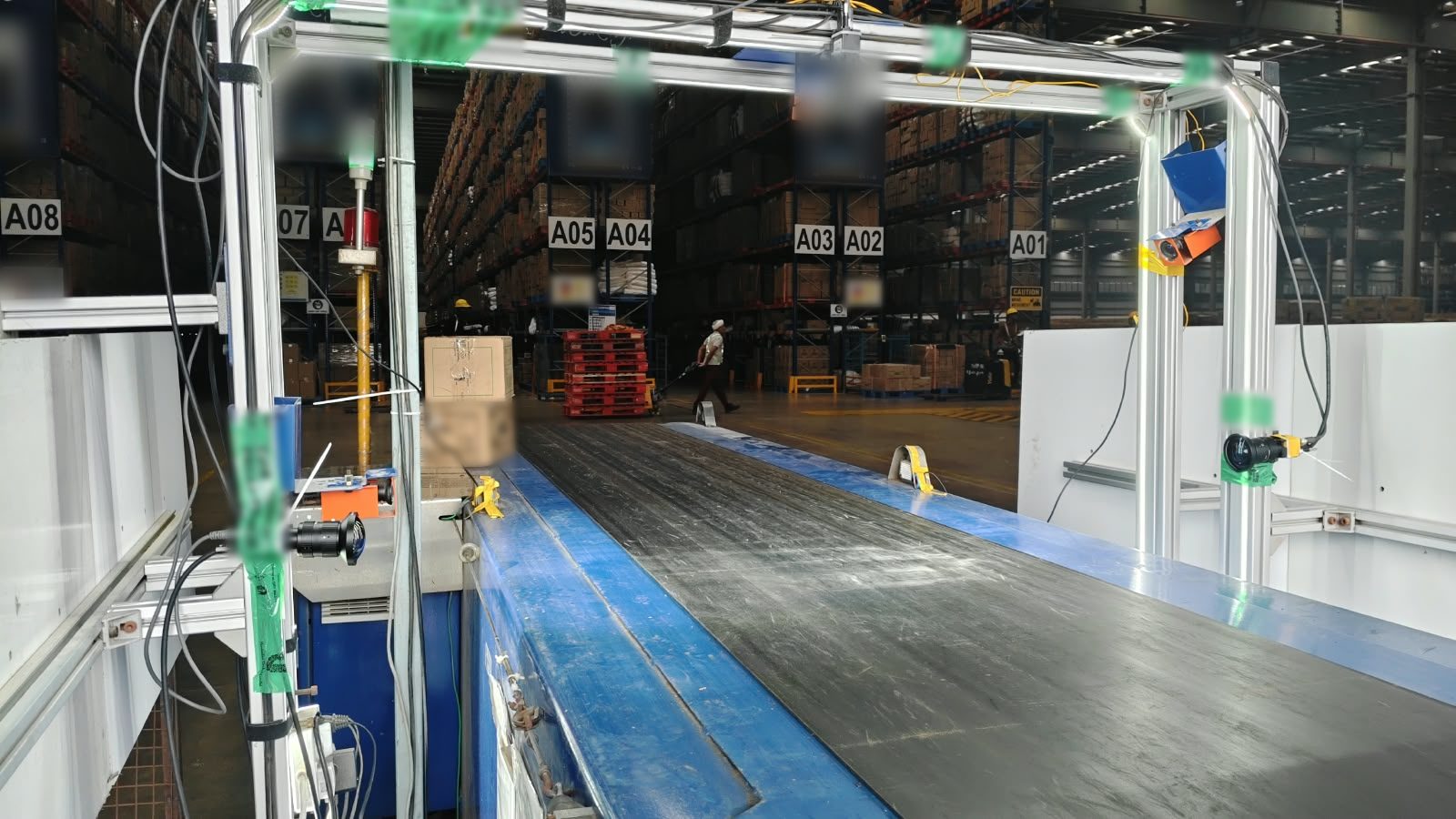
Two camera systems for distribution centres. At the dock, an arch over the loading conveyor reads each carton and tallies it against the shipment as it goes onto the truck. In the racks, cameras moved along the aisle count the boxes on every bin and report stock without a manual count.
The two counts a warehouse argues about most.
What left on the truck, and what's sitting on the shelf. Both are still counted by hand in most warehouses, on paper and after the fact.
Loading and unloading, counted carton by carton
An arch over the dock conveyor reads every carton and tallies it against the shipment in real time.
- Ordered vs loaded for every carton code
- Unknown cartons caught before they ship
- An image and timestamp for every carton
- Optional truck fill by volume
Stock on every bin, without a manual count
Cameras moved along the aisle read each bin label and count the boxes on it, reporting as they go.
- Front and top views, left and right racks
- Bin, SKU and box count, streamed live
- Auditor approves or corrects each bin
- Reconciliation against your master, as CSV
Know what's on the truck before it leaves.
Cameras overhead and on both sides of the conveyor read each carton's printed code and barcode as it passes. Every read is matched to a line of the shipment, so the dock sees what's loaded, what's still to come and anything that doesn't belong.
- ExpectedTotal cartons in the shipment, summed from the order lines you upload.
- InspectedCartons read at the arch so far. It climbs as the truck loads.
- Start and endTime of the first and last carton, taken from the detections themselves.
- Active vs idleLoading time split from gaps longer than your idle threshold, so slow docks show up.
- Live viewsLeft and right cameras, with the carton code each one read.
-
01 · PLAN
Upload the shipment
Order lines go in as an Excel sheet: shipment number, carton code, description and quantity.
Upload master data -
02 · READ
Cartons cross the arch
Each carton is read on the moving conveyor, from the printed code and from the barcode where there is one.
INSA1R3 -
03 · TALLY
Matched as it loads
Every read counts against its order line. Excess and shortage update per line, and unknown codes are held aside.
inspection − order -
04 · CLOSE
Dispatch with evidence
Export the reconciliation as XLSX. Every carton keeps its image, time and session for disputes later.
Export XLSX
Watch a shipment load
A simplified run of one shipment: four order lines and one carton that isn't on the order. Press play, or switch on truck fill to see the optional volume gauge.
| Carton code | Order | Loaded | +/− | Status | |
|---|---|---|---|---|---|
| Unmatched cartons: none yet | |||||
Codes, quantities and fill are invented for the illustration and run faster than real time.
The screens your dock team uses
Recorded on a live outbound shift. Product names, the client's logo and carton print are hidden.
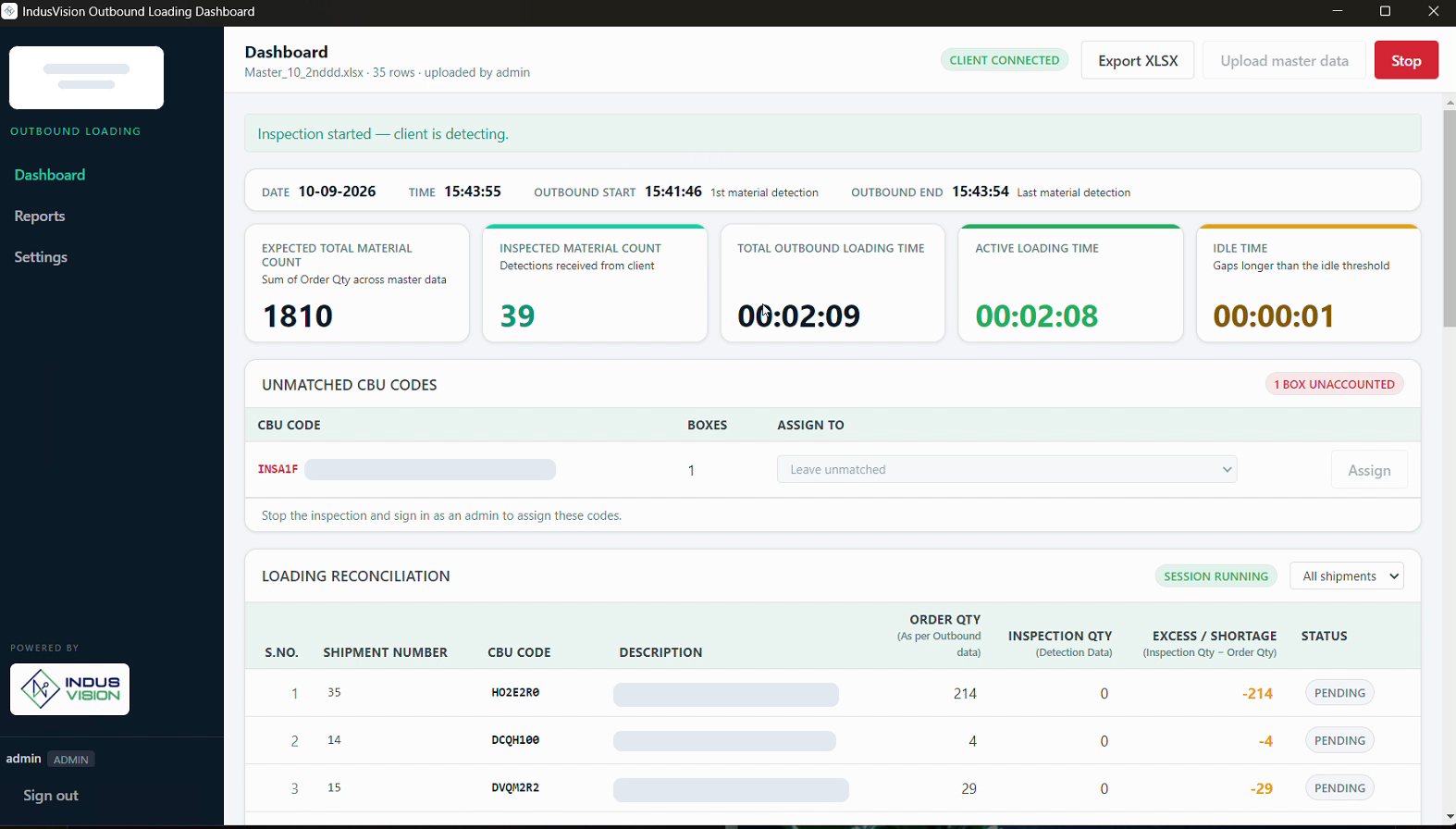
- 1Counts and clocks. Expected vs inspected, total loading time, active time and idle gaps.
- 2Start and end. First and last carton detected, so dock time is measured rather than estimated.
- 3Unmatched codes. A carton that isn't on the shipment is held aside. An admin assigns it to a line or leaves it out.
- 4Line reconciliation. Order qty, inspection qty and excess or shortage for every carton code.
- 5In and out. Upload the shipment as Excel and export the tally as XLSX.
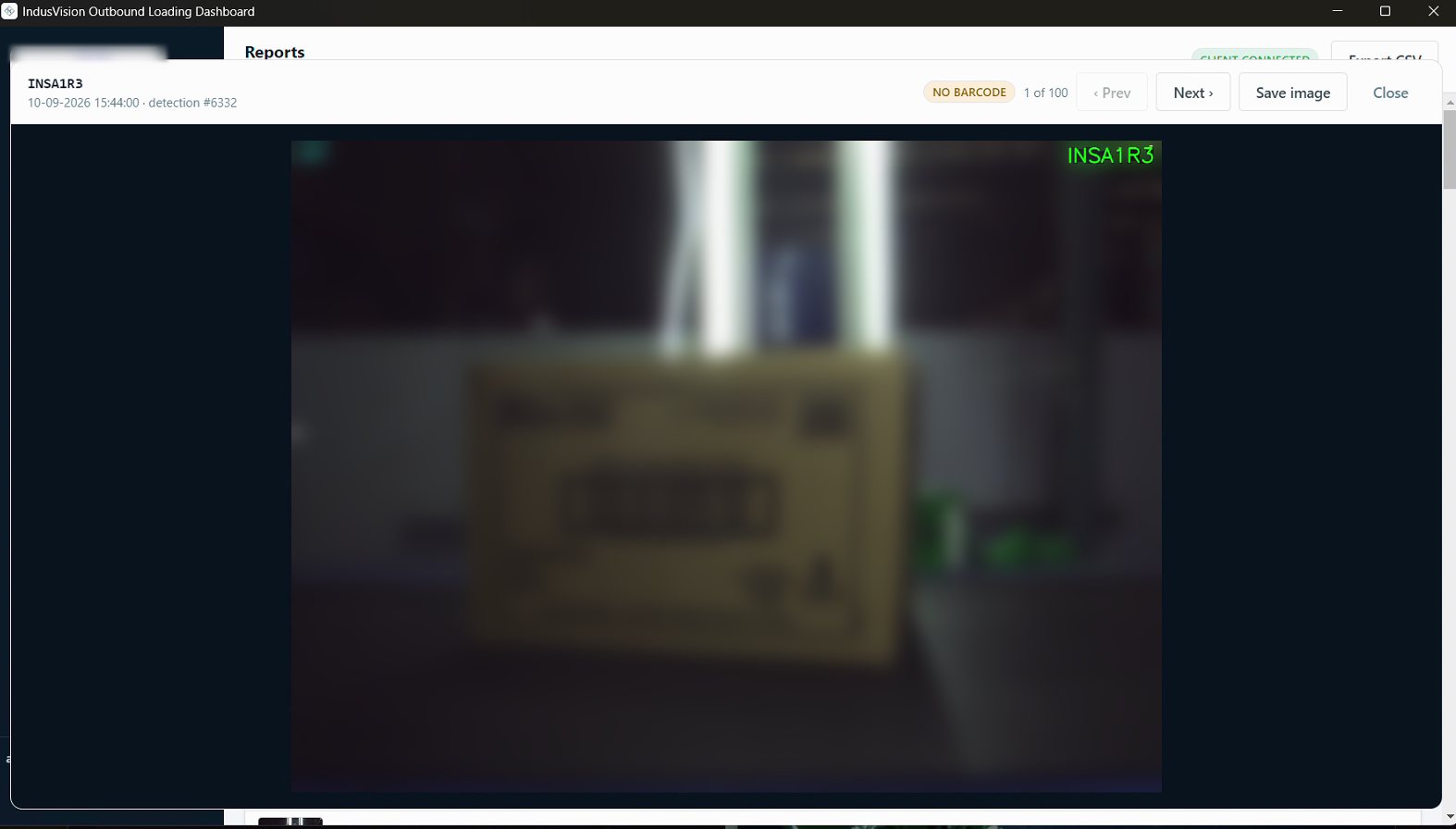
- FlagsCartons read without a barcode are marked for a second look, with the image to check against.
- SearchFilter detections by session, carton code, barcode, image or date range.
- AdjustmentsAdmin corrections are logged separately, so detected and adjusted figures never blur together.
- DisputesWhen a customer reports a short delivery, pull up every carton that went on that truck.
See how full the truck really is.
Add volumetric capture and the dock tally also tracks space. Each carton's volume is added up as it loads and set against the truck's capacity, so a half-empty truck is visible before it's dispatched, not on the freight bill.
- 1Carton volume taken from measured dimensions at the arch, or from carton sizes in your master data.
- 2Running fill percentage per truck, next to the carton tally.
- 3Utilisation per dispatch for planners: which lanes and loads leave space unused.
Stock on every bin, counted by camera.
A camera rig moves along the aisle and looks at both sides at once: a front view of each pallet face and a top view across its depth. It reads the bin label, counts the boxes and writes the result against that bin as it goes.
Live detections from a working aisle. The footage is blurred so no client packaging can be read; the detector's boxes and labels are untouched.
-
01 · LOAD
Upload the master
Your bin-to-SKU list goes in as CSV, XLS or XLSX. It's what every count is checked against.
Upload master report -
02 · SCAN
Move along the aisle
Press start. Four cameras, front and top on each side, cover the left and right racks in one pass.
Start · Pause · Stop -
03 · COUNT
Bins fill in live
Each bin label is read and its boxes counted. Rows stream to the dashboard while the rig is still moving.
61B-05-5 · 24 boxes -
04 · RECONCILE
Validate and export
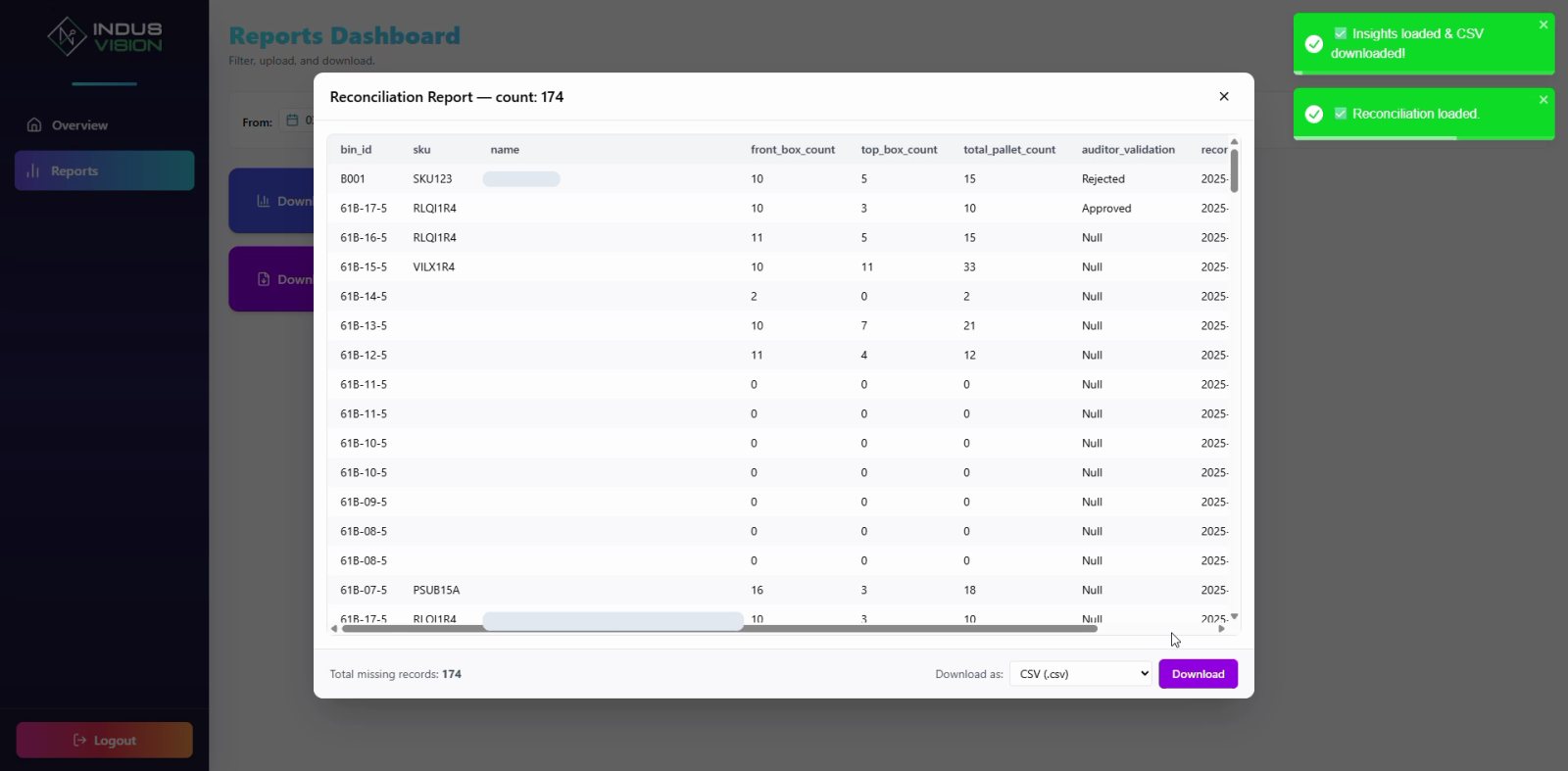
An auditor approves, rejects or edits each bin against its images. The reconciliation downloads as CSV.
Reconciliation report
Audit an aisle
Run a scan along one rack face, then pick any bin to see its counts and approve or reject it, the way an auditor does in the app.
The audit app
From a live audit. Product names are hidden and the camera images blurred.
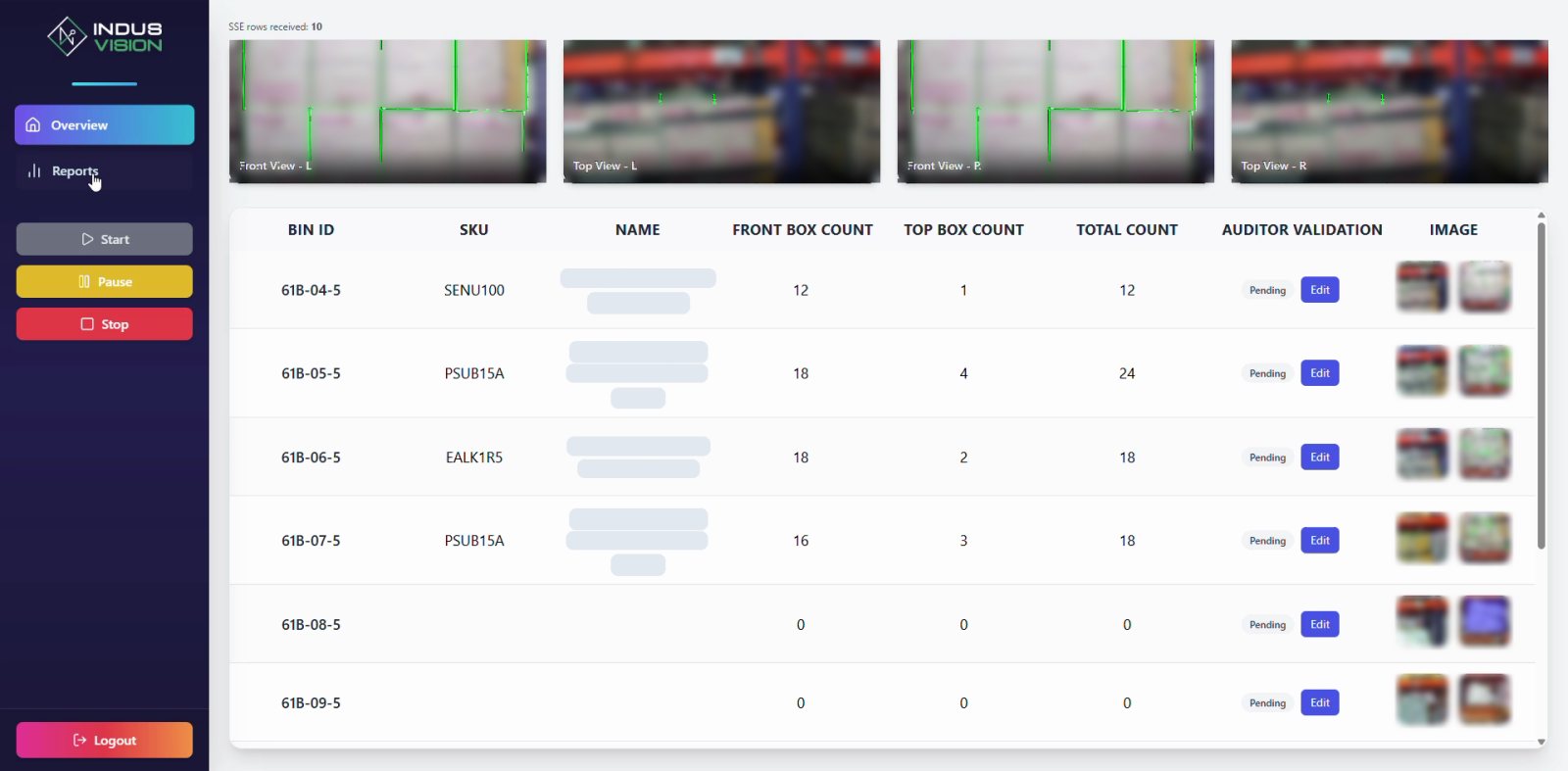
- 1Four live views. Front and top cameras on the left and right racks.
- 2Bin and SKU. The bin label as read, with the SKU your master assigns to it.
- 3Counts. Front-view and top-view box counts, combined into a total per bin.
- 4Auditor validation. Approve, reject or edit each bin, with its images one click away.
- 5Run control. Start, pause and stop the audit from the same screen.
Spreadsheets in, reports out. No WMS project.
Both systems take their plan from a file you already have and hand results back the same way.
Master data in
Shipments and bin masters upload as Excel or CSV, straight from your WMS or ERP export.
Reports out
Loading tallies as XLSX, audit reconciliation and insights as CSV, bag reports as PDF.
Live, not end of shift
Counts reach the dashboard as they happen, so a short line or a wrong bin can be fixed on the spot.
Image evidence
Every carton and every bin keeps the pictures it was counted from.
People stay in charge
Operators run the shift. Admins assign unmatched cartons, auditors validate bins, and every change is recorded.
Runs on site
Cameras and processing sit in your warehouse. Data stays on your network.
Built in an FMCG distribution centre. Useful anywhere cartons move.
FMCG distribution
High-volume outbound to distributors, where short and excess shipments turn into claims.
3PL warehouses
Proof of what was received and dispatched for each client, carton by carton.
Factory dispatch
Finished goods checked onto trucks against the dispatch plan at the plant gate.
Inventory control
Frequent rack audits in place of quarterly counts that stop the floor.
What warehouse teams ask first.
Does dock tally work for unloading as well as loading?
Yes. The arch counts cartons in either direction. For inbound, the tally runs against what you expected to receive instead of what you planned to ship.
What if a carton's barcode can't be read?
The cameras also read the carton code printed on the box. A carton counted that way is flagged "No barcode" with its picture, so someone can check it without stopping the line.
What happens to a carton that isn't on the shipment?
It's listed under unmatched codes with a box count. An admin can assign it to an order line or leave it unmatched, and that decision is recorded separately from what the cameras saw.
Do we have to change our WMS?
No. Shipments and bin masters come in as Excel or CSV, and results go back out as XLSX, CSV or PDF.
Is truck utilisation part of the package?
It's optional. Dock tally works on its own. Volumetric capture can be added where truck fill matters.
Start with one dock door or one aisle.
We'll set up at one dock or one aisle, run alongside your current tally or count, and put the two results side by side.